Home Blog Page 95

How to Unblur Course Hero Documents, Answers & Images [2022]

5
Unblur Course Hero Documents

How to Unblur Course Hero: If you are a student and studying at a university or college, you must have worked on many assignments and projects for your course. During the course, it is not easy to answer all the professor’s questions, and sometimes you get stuck on the questions. In such cases, the first point of contact for help can be the professor or a friend pursuing the same course.

However, if none is available, then finding the answers to those questions can be seriously difficult. The only option or alternative to this would be to search the answers online. Many different websites do provide the answer, but for a charge. One such popular website is Coursehero, but you will have to have a course hero account and pay for it to get the answers.

Since all the students cannot afford to pay for such answers every time, they cannot use the resource from Coursehero. When it comes to Coursehero, it is one of the prime websites for searching for assignments and homework for university students. It makes the students’ lives easier and allows anyone to upload the educational material that becomes available to others on a subscription.

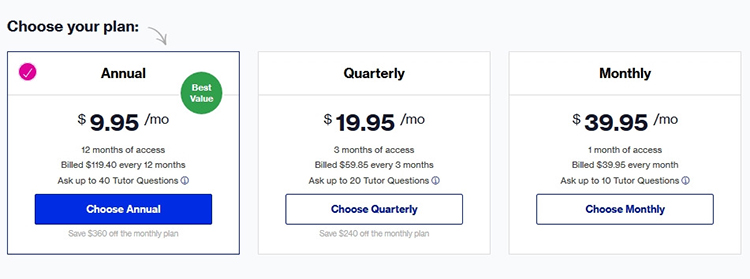
The subscription form Coursehero would range from $10-$40, depending on the duration of the subscription you have paid for. However, in this article, we will discuss the various techniques that students can use to unblur course hero. If you have been searching the internet for questions like “how to see course hero for free”, then your search finally ends here.

Below are some of the methods to Unblur Course Hero Documents & Answers

Upload more documents to CourseHero
how to unblur course hero

It is one of the easiest ways to unblur the documents of coursehero. For this, you need to register to Coursehero as a free user. Once you do that, you will have the option to upload the documents to their server. The more documents you upload to the course hero, the more documents will be made available to you for free.

Since Coursehero provides the uploaded and verified documents to other users on subscription, if your document gets good rates for Coursehero, they will unlock even more documents for you to access. The only thing you need to remember is that the documents you upload to the Coursehero account should be your own.

You should own its copyright, or else Coursehero will see it as a violation of the policies. The documents you upload to the Coursehero account are verified in the next three days. Once verified and processed, coursehero unlocks the restricted content for the user.

Share the pricing
how to get course hero for free

Paying the subscription’s full price might be too much for people, especially students who have a limited budget and pocket money. However, when you search for things like “how to get course hero for free”, you will often be provided with an option where people are selling the paid coursehero account at less price. So what happens is that when you visit online searches, Quora, or websites like Facebook, you will find many people who are already using Coursehero paid version.

Now there is two option, you could either ask those people to provide you the answers for the question at a nominal cost, which is a great way to get the answers for a few times. However, if you are in regular need of a Coursehero account, many people often share the account with more than one person by dividing the subscription amount between them.

Therefore, if you spend $4 for the account at one time, you only need to pay $1 if the account is shared between four users. Sharing the account will cost you less and will also be affordable for a student.

Use Creative Savants to unblur the content on Coursehero

Students are always searching for a free course hero account to ensure that they can get all the answers for assignments and homework. One of the most used and proven ways to unblur the content is simply using Creative Savants. Though it only provides a limited amount of Coursehero content, it is a great option for those who occasionally need a couple of answers.

Afterward, it will help you to unblock the content at the cheapest rate possible. The best part about this is that you will not be charged an entire subscription amount. In fact, you are only charged for the assignment you want, making it much more affordable.

However, the students using Creative Savant will have to submit their research and question on the website. You will also receive Coursehero unlocks, which can be used to pay for any document.

Rate the content on Coursehero and create quizzes
course hero free

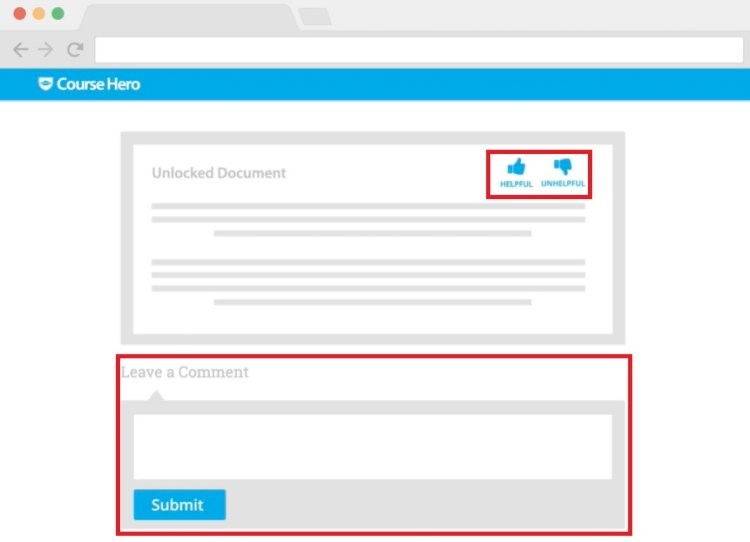
It is another popular way of getting to unblur the Coursehero documents for free. Once you access some documents using the free Coursehero account, you will be allowed to rate them. Rating other documents and materials also provide you with free unlocks for other documents.

If you cannot spend the subscription amount right now, then this is perhaps one of the easiest ways to access the document on Course hero without spending a dime. Once you rate the document, a free unlock request will then be sent to CourseHero, where it will receive confirmation and approval. Once approved, you will receive the CourseHero unlock rewards.

Another way of unblurring the content on Coursehero is by creating quizzes for them. You will again have to access the free unlocks before making the quiz documents. To do so, you need to get three Coursehero documents unlocked. Once that happens, you can create a quiz document and submit on Coursehero.

Make sure that the quiz follows all the guidelines and policies of the website. Once the quiz created by you gets a good response, it is approved, and you will get more unlocks on Coursehero.

Unlocking the Coursehero document using the browser

When you search for “how to bypass coursehero“, this is one of the solutions you will surely find on the internet. The following process needs you to open the course hero document on your Google Chrome browser and select the portion that has been blurred.

Once you highlight the blurred area, right-click on the area, and select “Inspect“. In the Window that opens, you will find a ‘div‘ tag with anon-hide obscured parameter. Right-click on it and select the “Edit attribute” option. Type in “None” for the new class element and reload the page on Coursehero again. The document will be visible now.

Searching online for answers

While you are searching course hero free, you might also check out the answer to your questions and assignment through an online search. Coursehero is undoubtedly one of the best libraries for academics where you can find almost all the answers. However, it is just a single platform, and there are many other platforms online that can provide you the answers for free.

You can Google search the question you are looking for the answer for, and you will get multiple search results for it. Once you do, open multiple tabs with the answers, and you will surely get what you were looking for. Now make sure to open a unique tab for a different website.

One of the major benefits of using web search is that you will discover many more websites that provide these answers for free. You can also use this website in the future for a similar purpose. It might not have a big library like Coursehero, but will be able to resolve your issue at the very moment.

CourseHero Hacks and Plugins

If you search online for “how to unblur course hero” and come across a post where it provides you with a coursehero hack and plugins that assures you to unblur the content on the website, then remain away from it. Yes, these hacks and plugins are not the correct way to access the content on Coursehero.

Most of these hacks are scams and, when downloaded and installed, can harm your system in many different ways. Also, these hacks are not legal and are disabled as soon as you run in on Coursehero. Also, most of these hacks have already been taken down and will not work now.

You must also remember that you should not download any software from the internet in the name of hacking as they might harm your device and remove all the existing information from it. The same goes for plugins were almost none of them work now as they have already been disabled.

Also Read: 10 Best Free Image Hosting Sites

Conclusion: How to Unblur Course Hero

So these are some of the best answers to the question “how to unlock course hero”. You can use any one of the techniques mentioned above to unblock or unblur the website’s answers. Also, make sure not to download any unverified software in the name of hacks for Coursehero as they can do a lot of damage to your data as well. We sincerely hope that you will be able to find all the answers regarding your homework and assignments using the techniques.
How To Take A Screenshot On A Mac [4 Insane Ways]

0

How To Take A Screenshot On A Mac: If you are working on a Mac then you do understand that working on it is very different than working on any other type of operating system. Mac is designed with a lot of different keyboard shortcuts to make the overall operation and usability much easier for the user. One of the most common requirements for the users on a Macbook is to take a screenshot on a mac, which might be very useful when you have to capture something important immediately.

How To Take A Screenshot On A Mac using Simple Shortcuts

There are a number of shortcuts on the Mac keyboard that allow you to take the screenshot of the screen in different ways. Apple gives you a fair amount of options when it comes to saving, deleting, or editing a screenshot. We have listed down the list of shortcuts that can help you to know how to take a screenshot on a mac.

Below are the shortcuts to take a Screenshot on Mac

Command+Shift+3

Shortcut 1 to Take a Screenshot on a Mac

This is one of the most basic commands that you will be used to take a mac screenshot. You simply need to open the screen for which you need to take the screenshot and press and hold the Command Key. While holding it down, press the Shift key and numeric key 3. When done, you will hear a camera capture sound which ensures the user that the screenshot has been successfully taking.

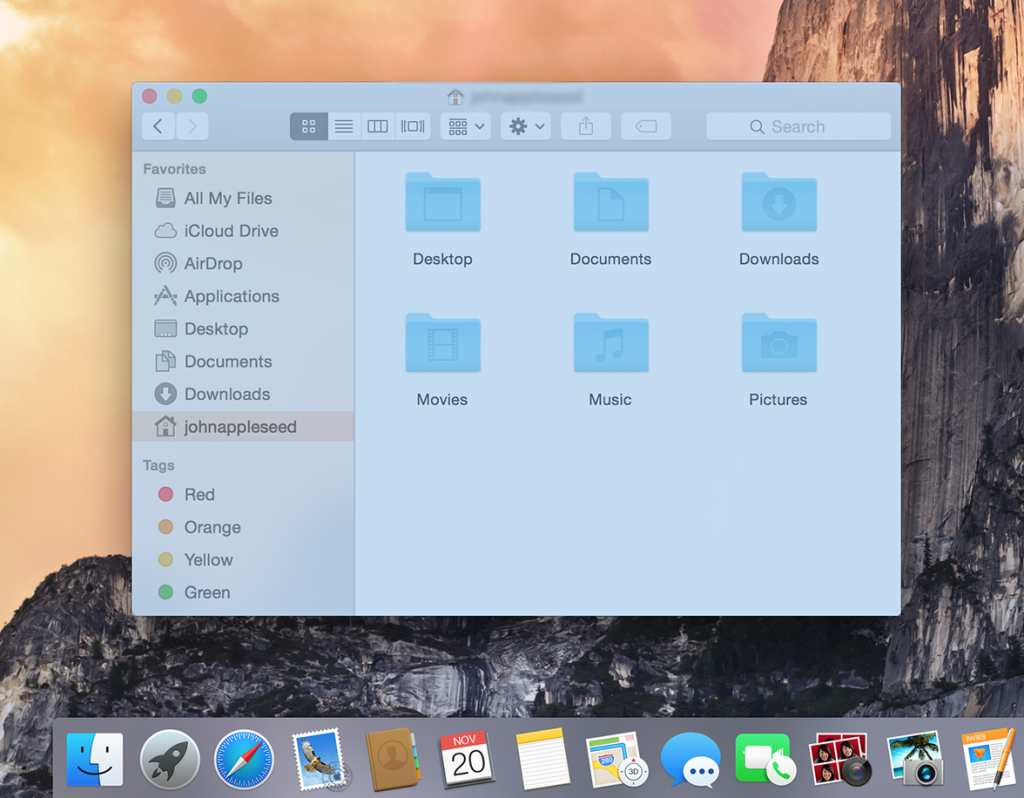
The screenshot is basically saved in JPEG format on the desktop, with the title as Screenshot and the date and time when the screenshot was taken. This shortcut will take the screenshot of the entire screen and is one of the most basic ways to take a screenshot on a Mac unless you only want the selected part of the screen to be captured.

Command+Shift+4

Shortcut 2 to take a MacBook Screenshot

Sometimes you do not need to take the MacBook screenshot of the entire screen and are looking to take the screenshot of just a specific part of the screen. This is where this keyboard shortcut will come into play. The user will have to simply press down the Command key, and while holding it down press the Shift and numeric key 4. When pressed, you will get a cursor on the screen which will ask you to make the selection of the part of the screen that you want the screenshot for.

Simply press and hold the mouse and drag the cursor to highlight the area. Once you have highlighted the area, release the mouse key after which you will hear a camera shutter sound, confirming that the screenshot has been taken. It will be saved with the name Screenshot and the date and time as the file name. The file is saved on the desktop for instant access.

This is not the only option the user has, but the Command+Shift+4 does provide the users with various other options as well.

  • After you press down the Command key, and while holding it down press the Shift and numeric key 4. You get the cursor on the screen which can be used to highlight the specific area. However, when you see the cursor, simply press and release the Space bar key and you will see a camera icon instead of the crosshair. Click the camera icon on the Window for which you want the screenshot. This screenshot will cover the entire window but will have a white border around the window with a shadow drop.
  • The second option allows you to relocate the highlighted area on the screen that you have selected through the crosshair. Simply press down the Command key, and while holding it down press the Shift and numeric key 4. When you see the crosshair, make a selection but do not release the mouse. Simply press and hold the Spacebar key and you will be able to reposition the highlighted area on the screen. It is a great way to make a selection if you have missed some areas while highlighting the area initially.
  • Another option that you can use with the same command is by holding down the Shift key. Follow the same process and make the selection, but do hold the SHIFT key while doing so. These locks in each side of the selection area made with the crosshairs save the bottom edge, letting you move your mouse up or down to position the bottom edge. Without releasing the mouse, release the Shift key and hit it again to reposition the right edge of your selection area.

Shift+Command+5

Shortcut 3 to take screenshot on mac

This is relatively a new command shortcut that was released with MacOS Mojave (2018). Using this command will not only give you a highlighted screen but will also provide a small panel at the bottom which comes with multiple options to choose from for screen capture mac. The three selections in the panel allow you to three screenshot buttons that let you capture the entire screen, a window, or a selection of your screen.

The shortcut also allows you to record a video of the screen with two video-recording buttons lets you record your entire screen or a selection of it. You can simply exit from the panel by hitting the “ESC” key.

On the other side, you will also see an “Option” button in the panel which lets you save the screenshot on Desktop, Documents, Clipboard, Mail, Messages, or Preview. You can also choose to show your mouse pointer on the screen or completely remove it in the screenshot.

Shift+Command+6

Shortcut 4 for mac screenshot

The above-mentioned command will work on all types of Macbook Pro and Air and the Command+Shift+5 command will only work on the system with MacOS Mojave (2018). However, there is another set of useful commands in Mac, which is the Shift+Command+6.  However, these commands are only compatible with Macbooks that have a touch bar. With these commands, you can also take a screenshot of what’s currently showing on the Touch Bar. Pressing Command-Shift-6 will give you a very wide and slim screenshot of the Touch Bar.

Conclusion: How To Take A Screenshot On A Mac

So these were some of the best shortcuts and will answer your queries on how to take a screenshot on mac. These commands and shortcuts are fairly easy and you will get used to them as soon as you start using them. Based on the different types of shortcut options, you can take screenshots of the entire screen or a selection.

Also Read:

How to Transcribe YouTube Videos Automatically (Stupid Simple Method) [2023]

0
Transcribe YouTube Videos

When it comes to content consumption on the internet, Youtube is probably one of the biggest platforms to do so. We all must have a Youtube platform to watch videos for something specific or just for entertainment. Youtube comes with a lot of features like subtitles, translation for tips, and shortcuts for the users. Similarly, youtube transcription can also be done as easily as the other features.

To manually transcribe youtube videos, would take a lot of effort as well as time. However, with technologies and features like speech recognition, things have become a lot easier and faster. The new software can easily provide you a youtube video to text transcription and also the ability to edit it. When a user uploads a video to the Youtube platform, they are automatically transcribed, and from there, getting the transcriptions for free is very easy.

Let’s have a look at some of the ways through which it can be done.

Below are Two Methods of Transcribing a Youtube Video

Copy/Paste YouTube Transcript

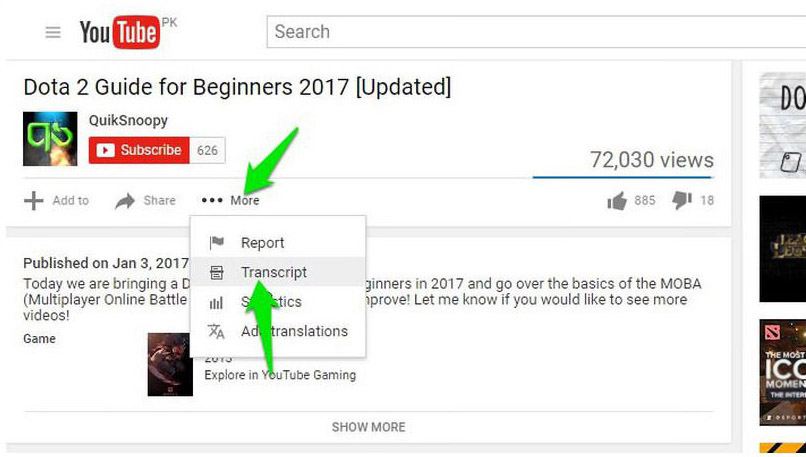
When it comes to the videos that are uploaded on the Youtube platform, they are automatically transcribed using Google’s Speech Recognition technology. Apart from that, there are some video creators that themselves add the transcript for users to better understand the video. No matter how it is available, it is much easier for the users to simply access the transcript and download it for free. To download the transcript of a youtube video, one simply has to click on the “More” button below any Youtube video which will also have three dots aligned next to it. Clicking on the “More” option would give you the option of “Transcript“.

Copy/Paste YouTube Transcript

Clicking on that option will give you an option to select the language and once selected, you will be able to see the full transcript of the video, along with the timestamps. Once you see the transcript, click the text and drag to highlight all the text that you want to select. Once done, simply press and hold the CTRL+C key on the keyboard to copy the transcript.

The best part about using the method is that Youtube will automatically highlight all the words in the transcript which might have been wrongly interpreted by Google. Also, one can easily click on the CC button in player controls on Youtube videos and see the subtitles to match it with the video and find the wrong interpretation. While the subtitles are in white, you might find a gray word in between, which is a way of Google saying that the word might be wrong.

This way, you will be easily able to amend the youtube transcribe. However, the subtitles or transcript that has been uploaded by the video owner will not have any gray words. Only videos for which Google automatically creates a transcribe have the gray words.

Transcribe Video with Google Doc

If you search online for how to get the transcript of a video, then one of the options that you will also come across is Google Docs. Since Google has been handing all of these tools, all of them come with a lot of similar features. In this case, Google Docs has a youtube transcription feature. The method mentioned above to transcribe youtube videos is great when the Google speech recognition system creates the youtube video to text transcription or if it has been uploaded by the users.

However, if there is no transcript of the youtube video and you still want to create one, Google Docs can turn out to be a very useful tool. Google Docs has a built-in voice typing feature to listen to the video audio and automatically type everything. In this case, we can play the video through speakers for youtube transcribe and the software will automatically detect the words to translate it into youtube transcription.

Transcribe YouTube Video with Google Doc

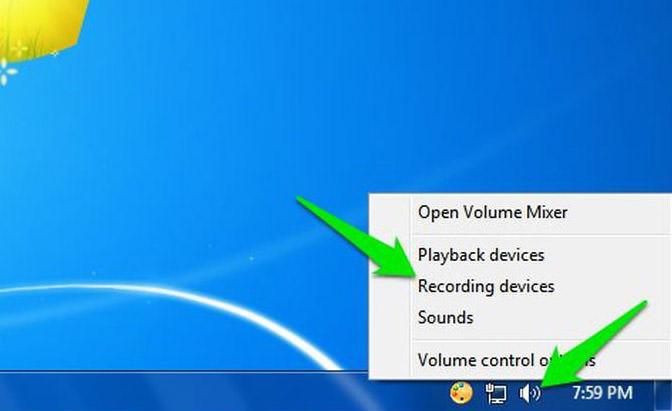
In order to use this method, simply go to the sound icon in the taskbar on the bottom right of the Windows operating system and then select the option of “Recording Devices.” On the next window, the user needs to select “Stereo Mix” from the list and then select the “Set Default” option for the source of the recording. In case the Stereo Mix option is not supported by the system, the user can simply download the VB Virtual Audio Cable tool which will provide them with the alternate option in the same menu.

Transcribe with Google Doc

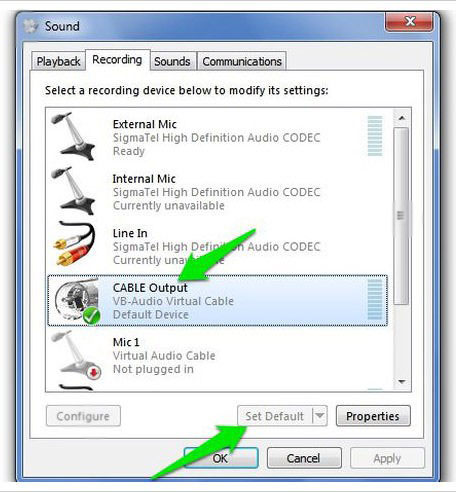
Once the drivers for the new elements have been installed, one will be able to see the option of “Cable Output“, which needs to be selected. After selecting the option, click on the “Set Default” option. The entire process is to make the system ready in terms of software so that it can easily transcribe youtube videos to text in Google Docs. After the setting has been applied, the system will be able to listen to the audio from the speakers and then youtube transcribe the video.

Once the setting has been applied, open the Google Docs in Chrome and create a new document and select “Voice typing” from the tools menu. Once the option is selected, you will see a small microphone icon in the middle. Click on it to start recording. Now, the user can move to the Youtube video and play the video.

Google Docs will automatically record the voice coming from the speakers and then transcribe youtube videos to text. The process is a little time-consuming but the quality of youtube transcription that you will get from the process will be very accurate. Google Docs currently supports more than 40 languages and the end transcript will be as good as you get from Youtube’s own software.

Conclusion: How to Transcribe YouTube Videos

So these are some of the best ways through which you can get youtube to transcribe in the most effective and accurate manner. These methods are powered by Google and will have the best results as per your expectations. Even the videos on Youtube with noise or background noise are able to provide transcripts of youtube videos with great accuracy.

More Articles on YouTube:

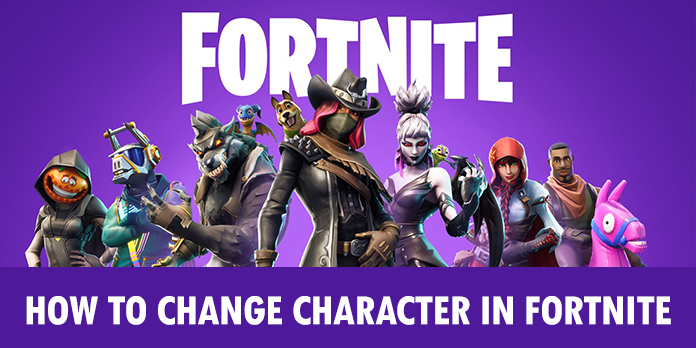
Fortnite: How To Change Character in Fortnite (Exclusive Guide)

0

How To Change Character in Fortnite: When it comes to gaming, the current gaming industry is mainly focused on the online multiplayer platform, where the players from the world over are able to compete with one another. Since these platforms provide almost unlimited hours of constant gameplay, they have become really popular among online players. One of the most popular among online multiplayer games in recent years has been Fortnite.

Fortnite is based on the Battle Royale concept where a group of players competes in a time-based event and the last team or individual standing wins. The game has become really popular globally and provides great gameplay of team strategy and first or third-person shooter.

how to change character in fortnite

Players have access to Fortnite’s Battle Royale mode for free and provide them with players that are customized at random by the system. While playing the game, players should know how to change character in Fortnite and the different things they can get for their character. The game also provides the user with many different items as they progress further in the game and also lets players purchase in-game items to give them an edge over the other players in the game.

The game is already available on Xbox One, PS4 consoles, and has two different gaming modes called the Battle Royale PvP (Player versus Player) and Save the World PvE (Player versus Environment). The gameplay, graphics, and overall experience of Fortnite have been fairly impressive and have been appreciated by players the world over.

fortnite how to change character

Now there are a lot of things that are good about the game but one thing that was not available before in the game was player customization and change. Earlier, the user could only pick the character from the randomly generated character by the game engine and the user did not have much of a choice.

The player change and customization feature were available in the competitive games to Fortnite which gave a major appeal to other games. Unless you have unlocked different types of heroes in the game, there is no chance for you to change the character.

Read the below guide to Change the Character in Fortnite

Unlock characters through Loot Llamas

Unlock characters using Loot Llamas

One of the best ways to unlock the character in the game is by looting or completing the task of Llamas. For that, you first need to go through the tutorial which would help you to understand how the player works and how you can use the skill set of the player to the advantage.

Once you have completed the tutorial, start to gather loot llamas, which can be broken open. If you get lucky, you will be able to unlock a new character. They can also be purchased after completing certain tasks. Once that happens, you can go to the Hero tab and change the character.

Apply the character skin that you have acquired

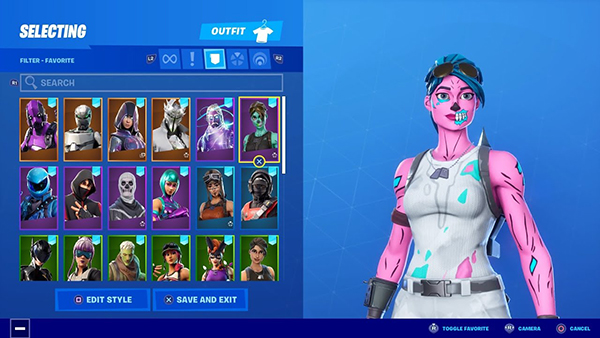
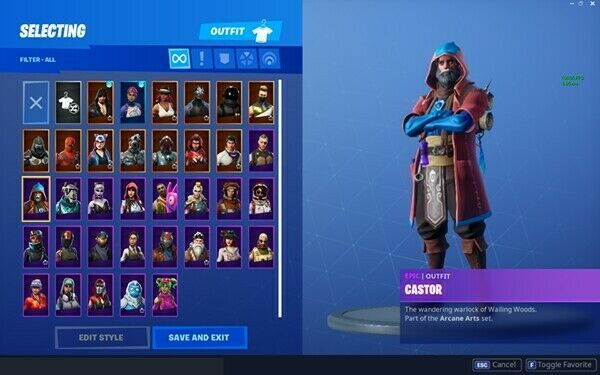
However, if you do not have the new characters in Fortnite unlocked, then you can simply go to the game and head to the base Locker tab for your player. Once you are there, open the outfits and choose your preferred skin that you want to apply to the character. Skins can either be purchased or can be achieved through certain tasks. In the tab, you will be able to see all the skins that you have acquired.

You can simply select the preferred skin and apply it to the character for the change. Now, this technique to change the character completely will only work when you have acquired some skins. If you don’t have any, then this will not be an option for you.

how to change character in fortnite

However, if you do not have skins, then you can acquire them with V-Bucks or get the battle pass for a season that allows you to select any skin that is available in the Fortnite store. If you are looking to buy more than one or multiple skins for your player then it would be the best option to get the battle pass, as it will be a much cheaper and better option for you as a player.

Skins are the best way to change the character you are playing completely. Apart from this, there is currently no other way through which you can customize the player or character in the game. This feature itself was not a part of the original game when launched. It was added to the game much later after players requested features to change the character.

Apart from changing the skin, players have been requesting Fortnite to add more options to either change the player completely or get more customization features. Since competitor apps like PUBG have a much better customization option available and even the option to change the player, it becomes very common for a player to compare Fornite with other games on the same Battle Royale platform. Although Fortnite has added the option to select your character’s gender, hair and skin color, etc, a change of character later in the game is one option players are looking for with excitement.

However, if you have a Battle Pass then you can simply use it to purchase the skin and open the slot of outfits in the Locker tab to use it.

Final Thoughts On How To Change Character In Fortnite

Fortnite is truly one of the best games in the Battle Royale category and has some serious fans world over. Although the games do lack the option for character customization and change, there are still some ways through which you can change the appearance of the character to make it look better and new.

It is also expected that Fortnite will release more options to customize the character in the future. By now, you should know how to change character in Fortnite. You can check our other articles on Fortnite over here.

Qualcomm might launch a gaming console soon

0
Image Credit: techspot.com

Gaming and Gaming consoles are a very big and popular market right now and are dominated by names like Sony Playstation, Xbox, Nintendo, etc. Although this is a very big market, we have not seen a big name entering the segment for a long time. However, it seems like that is about to change and Qualcomm is all ready to make the big jump. The American Chipmaker company is reportedly working on a new gaming console that can be very similar to the Nintendo Switch. 

The information was revealed by Android Police and they claimed that the console looked exactly like Nintendo Switch and would run on the Android operating system. The console is being manufactured by an unknown “premium supplier in the controller space. It will come with support like HDMI and will have a 6,000 mAh battery along with an SD card slot and 5G connectivity. Since it will be powered by a battery, it will come with Qualcomm’s Quick Charge technology. 

YouTube video

It is also expected that the console will be running on Android 12 at the time of launch and will have a customized launch and support for Google apps and services. Qualcomm is reportedly in talks with Epic Games to include the Epic Games app on the console. It does seem to be a very good option from the chipmaker and the only question not remains is what kind of games will it support and will it have specific and exclusive games made by Epic games as well. The expected price for the console can be $300 and is expected to come with Snapdragon 800 series.

Xiaomi to bring Mi Mix smartphone with liquid lens technology.

0
Image Credit: mysmartprice.in

We would all agree on the fact that one of the most evolved features of smartphones has been the camera. Most of the companies have invested millions in camera technology to make sure that their phone emerges as one of the best camera phones out there. Due to this, smartphone companies have been teaming up with companies such as Carl Zeiss, Hasselblad, and a lot more, to get the next generation of cameras in their smartphone and have an edge in the smartphone market. 

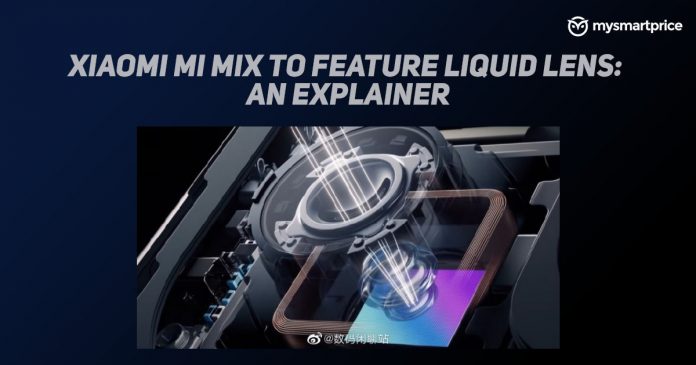
Now Xiaomi has been planning to bring back the Mi Mix series of smartphones and is expected to launch a teaser on March 29. The phone is supposed to have a camera with a liquid lens, which was researched and developed in-house by Xiaomi. The lens is supposed to imitate the human eyes and focus instantly on the object at various distances. The technology has been named Bionic photography and is basically a transparent fluid wrapped from the ultra-thin film that can change the curvature of the lens to achieve rapid refocusing and minimize distortion. 

The liquid or fluid used in the lens has high light transmittance, ultra-low dispersion and is extremely resistant to environmental factors. Apart from this, there is no other information on what the smartphone will come with and bring a whole new experience in mobile photography. The phone is expected to launch in the Q2 of this year and we can surely say that the phone will definitely break a lot of barriers in the mobile photography segment.

Samsung can launch Galaxy S20 FE 5G in the Indian market next week

0
Image Credit: xda-developers.com

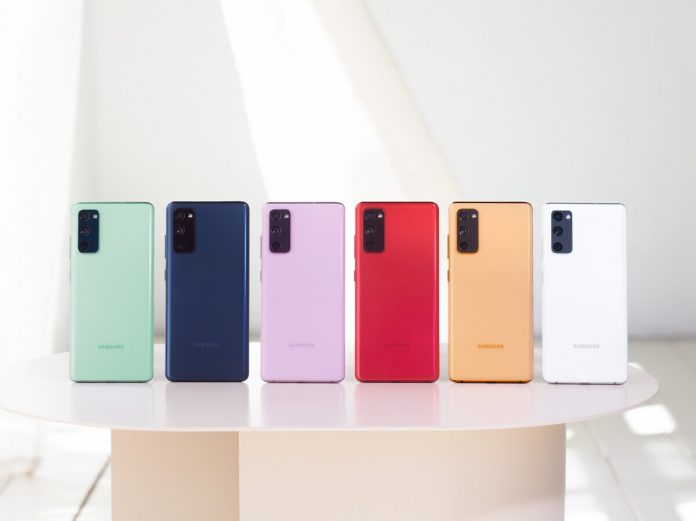
Last year, Samsung offered a new and more affordable smartphone series for their premium flagship Galaxy S20 and it was named Galaxy S20 FE. After the smartphone received a lot of success and appreciation, Samsung announced that they will be releasing a FE version of every premium flagship phone that they launch annually. Therefore, after the launch of the Samsung Galaxy S21 series, Samsung fans are eagerly waiting for the Samsung Galaxy S21 FE series. However, before that happens, another smartphone is going to make its entry into the market. 

It will be the Samsung Galaxy S20 FE but with 5G capabilities. The support page for Samsung Galaxy S20 FE 5G just went live on the Samsung India website and around the same time, the smartphone has been certified by BIS (Bureau of Indian Standards). Now as per the latest reports, Samsung will be launching the phone next week in the Indian market. After the launch of Galaxy, S20 FE will be available in two variants of 4G and 5G. 

YouTube video

The 5G variant for the same phone was released earlier in September 2020 but was not available for the Indian market. Now, after five months of the launch, the handset will finally be available for Indian users as well. The pricing of the smartphone is expected to come around $688, which would be around Rs 50,000 in Indian currency. There is no confirmation on the processor that will be used, but most probably it will be the Snapdragon 800 series.

Vivo launches three new smartphones in the Indian market, Vivo X60 Pro+, Vivo X60 Pro, and Vivo X60

0
Image Credit: 91mobiles.com

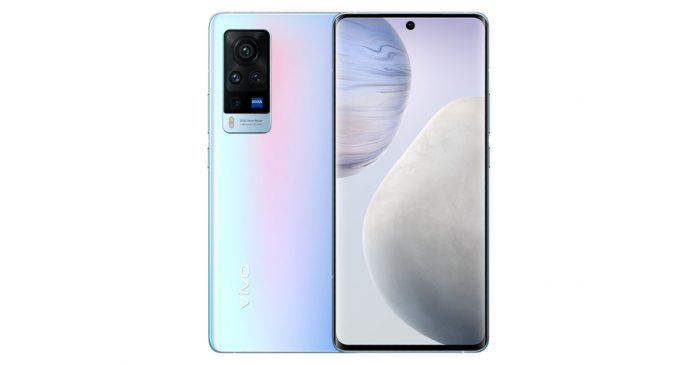
Vivo has finally launched the new Vivo X60 Pro+, Vivo X60 Pro, and Vivo X60 smartphone in the Indian market as their latest flagship series. The Vivo X60 Pro and Vivo X60 were originally launched in the Chinese market last year in December and later Vivo X60 Pro was launched in January this year. All three smartphones have been launched in India and the main USP of the phone is the camera setup. The phone is popular for the gimbal feature in the camera setup which provides a 5-axis gimbal for video stabilization. 

The Vivo X60 Pro+ is priced at Rs. 69,990 for the 12G/256GB variant, the Vivo X60 Pro also comes in a single 12GB + 256GB storage model that is priced at Rs. 49,990 and the Vivo X60 comes in 8GB + 128GB storage configuration that costs Rs. 37,990 and a 12GB + 256GB storage model that costs Rs. 41,990. The phone will be made available for pre-booking on 25 March and come with Funtouch OS 11.1, based on Android 11 out of the box. It comes with a 6.5-inch full-HD (1,080×2,376 pixels) AMOLED display with a 120Hz refresh rate and a 240Hz touch sampling rate. While the Vivo X60 Pro is powered by Qualcomm Snapdragon 888, the other two variants have been powered by Qualcomm Snapdragon 870 SoC. 

YouTube video

The Pro+ variant gets a quad-camera setup which includes a 50-megapixel GN1 Sensor with optical image stabilization (OIS) and an f/1.57 lens, a 48-megapixel Sony IMX 598 sensor with Gimbal stabilization and an f/2.2 lens, a 32-megapixel sensor with an f/2.08 lens, and an 8-megapixel sensor with an f/3.4 lens. The Vivo X 60 Pro comes with a triple camera on the rear with a 48-megapixel Sony IMX 598 sensor with Gimbal stabilization and an f/1.48 lens, a 13-megapixel sensor with an f/2.2 lens, and another 13-megapixel sensor with an f/2.46 lens. The Vivo X60 comes with a 48-megapixel Sony IMX 598 sensor with Gimbal stabilization and an f/1.48 lens, a 13-megapixel sensor with an f/2.2 lens, and another 13-megapixel sensor with an f/2.46 lens. All three smartphones come with a 32MP camera sensor in front.

Google has added more practice problems, quizzes, and other educational content in search engine results

0
Image Credit: 9to5google.com

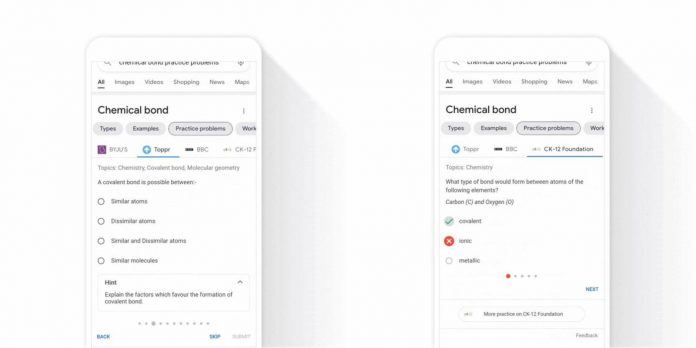
During the pandemic when educational institutions were closed all over the world, Google made it easier for people to study by providing educational content online. Since then, the search engine has been providing much better educational content online on various topics. Now Google is also adding practice problems to its platform while expanding other capabilities. With the help of the Google search engine, one can now find interactive practice problems which are related to subjects like school math, chemistry, and physics. 

If you search Google for problems related to physics theory, it will provide you with a knowledge panel,  that features new dedicated sections, like examples, videos, and worksheets, for over 2,000 STEM concepts, etc, based on the subject you have searched. Tabs allow you to see practice problems from different providers, including BBC Bitesize, Byjus, Careers360, Chegg, CK12, Education Quizzes, GradeUp, Great Minds, Kahoot!, OpenStax, Toppr, and Vedantu. Similarly, many educational quizzes can now be found online along with the answers and explanations. 

Google has recently had a partnership with Symbolab, Mathway (a Chegg Service), and Tiger Algebra through which students can find many more complex problems online. Google will also post products that support screen readers and improved keyboard usage for those with motor disabilities. Google has been really focusing on providing more and more knowledge through Google search which has made it much easier for people to search quizzes, problems related to a specific subject almost immediately. These are currently available globally and that too in multiple languages.

OnePlus smartwatch pricing leaked

0
Image Credit: indianexpress.com

OnePlus is all ready to launch their OnePlus 9 smartphone and the new OnePlus watch which the OnePlus fans have been waiting for a long time. Now recently details regarding the OnePlus smartphone have been leaked online, giving a good amount of details about the specs. Along with it, tipster Ishan Agarwal has given a few more renders of the OnePlus smartwatch and has also disclosed details about the pricing. As per him, the OnePlus watch would cost around €150 (~$178) in the European market. 

With this kind of pricing, OnePlus seems to be hitting the competition and targeting similar smartwatches from Xiaomi and Huami in the European market. Apart from the attractive pricing, the watch is rumored to have a real-time operating system similar to what we’ve seen on Amazfit watches, IP68 water, and dust. OnePlus has already confirmed that the smartwatch would come with 110 workout modes and will have other features like SpO2 or blood oxygen tracking, stress tracking, sleep analysis, heart-rate monitoring, and more. 

YouTube video

If we talk about the specification and the list of features, it seems that the OnePlus smartwatch is going to aggressively take down its competitors, however, we will have to wait for the real-world performance of the smartwatch after it is launched tomorrow. Until then, we can only hope that OnePlus has finally made a smartwatch after years of development, which can provide the users with something premium and unique at good pricing.